
How to Connect IP Cameras to an Analogue DVR in 2026

Enhance Your CCTV System with Hybrid IP Integration
As security technology continues to evolve in 2026, more homeowners and businesses are moving toward IP-based surveillance for improved image quality, advanced analytics, and greater system flexibility.
If you already have an analogue DVR, adding IP cameras is a great first step, but a fully IP system is where you’ll experience the full potential of modern surveillance technology.
Many modern DVRs support hybrid functionality, allowing you to integrate IP cameras alongside your existing analogue system. This approach can help extend your system’s capabilities while introducing newer features such as AI-based detection and remote monitoring.
This guide walks you through how to connect IP cameras to an analogue DVR and configure a hybrid CCTV setup.
Before You Start: Key Things to Check
Before setting up IP cameras on your DVR, it’s important to ensure your system is ready for hybrid integration. A few quick checks now can help avoid issues during setup.
Keep the following in mind:
Check your DVR’s IP channel capacity
Make sure your recorder supports the number of IP cameras you plan to add.
Reboot after changing channel types
Your DVR will require a restart after converting analogue channels to IP.
Enable recording settings properly
If using SD cards or event recording, ensure these are configured correctly.
Understand AI feature limitations
Enabling IP channels may disable AI functions on analogue cameras.
Confirm firmware compatibility
Ensure your DVR is running the latest firmware that supports hybrid functionality.
Why Upgrade from Analogue to IP Cameras?
Before diving into setup, it’s important to understand the benefits of IP cameras:
Higher resolution (HD, 4K, and beyond)
Advanced AI analytics (motion detection, perimeter protection, intrusion alerts)
Remote access via mobile apps (like DMSS)
Scalable systems (add more cameras easily)
Smarter event recording and notifications
In short: IP cameras enhance your system with smarter detection and greater flexibility, making them a strong addition to modern surveillance setups.


Can You Add IP Cameras to Any DVR?
Not all DVRs support IP cameras, but many modern systems (including SPRO models) offer hybrid capability.
Key things to check:
Maximum IP channel capacity
Network compatibility
Reboot after changing channel types
Enable recording settings properly
Understand AI feature limitations
Confirm firmware compatibility
Important: When you enable IP channels, your DVR reallocates processing power. This typically means AI features on analogue channels will be disabled.
While hybrid systems are an excellent way to expand your setup, fully IP-based systems still offer the highest level of performance, scalability, and AI capability for larger or more advanced installations.
What You’ll Need
To connect IP cameras to your DVR, you’ll need:
Your existing analogue DVR
Compatible IP cameras
A router
A network switch
Ethernet (Cat5e/Cat6) cables
MicroSD card (for onboard recording)
Step 1:
Physical Setup (Network Connection)
The setup is simple and mirrors a standard IP system:
Basic layout:
Router → Network Switch → DVR + IP CamerasHow to connect:
Plug the network switch into your router
Connect your DVR to the switch
Connect all IP cameras to the switch
This allows your DVR to detect and pull video feeds from the IP cameras.
Step 2: Enable IP Channels on Your DVR
By default, DVR channels are set to analogue. You’ll need to convert some to IP.
Right-click → go to Main Menu
Select Camera → Channel Type
Change selected channels from Analogue (Auto) to IP
Apply changes
Reboot the DVR when prompted
Tip: Convert channels starting from the highest channel number (e.g., Channel 8, then 7, then 6).


Step 3:
Add and Initialise IP Cameras
Once IP channels are enabled, you can add your cameras.
Go to Main Menu → Camera → Camera List
Select the “Not Initialised” tab
Click Search Device
Find your camera via its IP address
Tick the checkbox → click Initialise
Set login credentials (use local password option)
Click Add
Your IP cameras will now be assigned to available channels on the DVR.
Step 4:
Restore AI Features Using IP Cameras
After enabling IP channels, your DVR’s built-in AI features for analogue cameras may no longer be available. However, IP cameras process analytics independently, allowing you to still use:
Perimeter protection (IVS)
Motion detection
Smart alerts
These features are configured directly on the camera rather than the DVR. This highlights one of the key advantages of IP technology, analytics are processed at the camera level, offering greater flexibility and performance, especially in fully IP-based systems.
Step 5:
Install & Format an SD Card (Optional but Recommended)
For event-based recording directly on the camera:
Install:
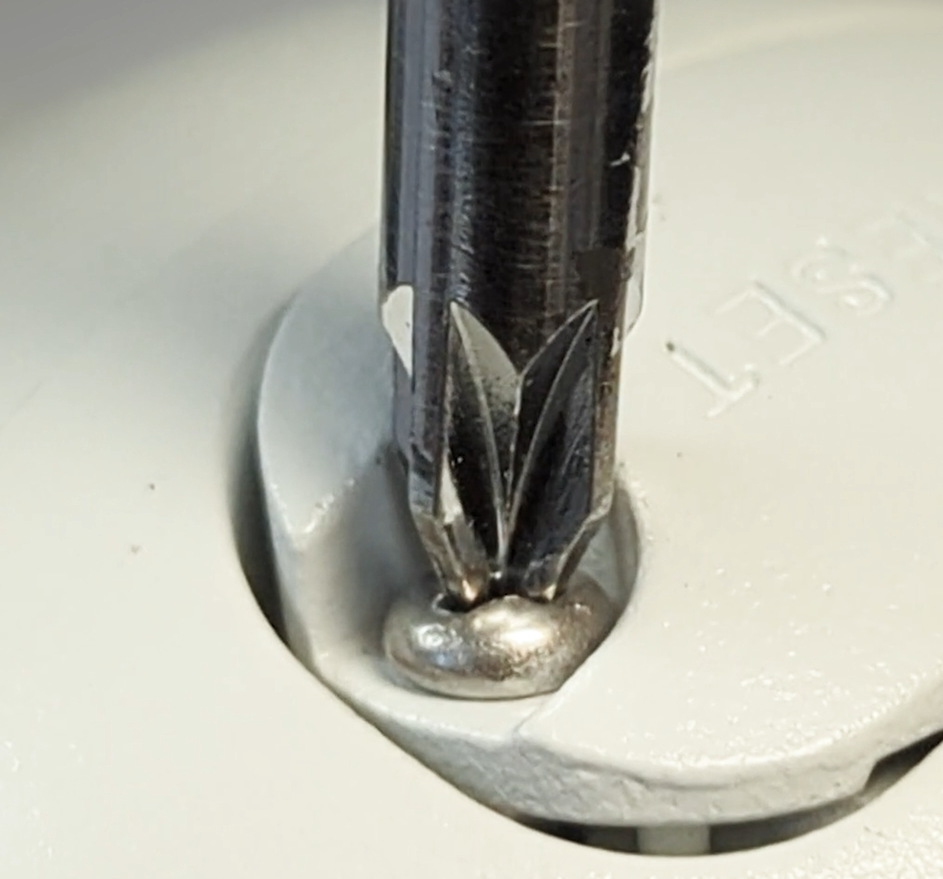
Open the camera housing
Insert a MicroSD card
Secure it back in place
Format via browser:
Enter the camera’s IP address into your browser
Go to Settings → Storage → Destination
Select the SD card
Click Format
Enable recording:
Go to recording settings
Enable all relevant checkboxes
Save settings
Step 6: Set Up Smart Analytics (IVS)
To enable AI-based detection:
Log into camera via browser
Go to Event → Smart Plan
Enable smart analytics
Navigate to IVS (Intelligent Video System)
Add a rule (e.g., tripwire or intrusion)
Draw detection zones on the live view
Enable recording triggers
Save settings.


Step 7:
Connect Cameras to the DMSS App
For remote viewing and alerts, use the DMSS mobile app.
Setup:
Open DMSS
Tap Add Device
Scan the camera’s QR code
Enter login credentials
Confirm settings (ensure UPnP is enabled)
Step 8:
Enable Motion Alerts & Notifications
Stay informed in real time:
Open device settings in DMSS
Tap Notifications
Enable:
Device alarms
Push notifications
Select alert types
Save settings
Final Thoughts: Expanding Your CCTV System with IP Cameras
Integrating IP cameras into your existing DVR setup is a practical way to expand your system’s capabilities and introduce more advanced surveillance features.
Hybrid systems offer flexibility, particularly when enhancing specific areas or gradually modernising your setup.
As your requirements grow, transitioning to a fully IP-based system can provide even greater performance, scalability, and advanced AI functionality.
Need Help Choosing the Right IP Cameras?
If you’re considering adding IP cameras or planning a future upgrade to a fully IP system, explore the latest solutions at SPRO CCTV or speak to a certified installer for expert guidance.


Comments